全力で遠回り さらに表示
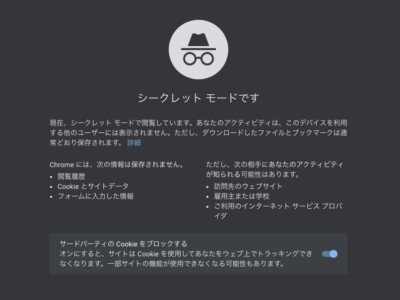
MacのChromeでシークレットモードが使えない場合の対処法
シークレットモードが使えない
諸事情でMacのChromeでシークレットモードが使えない場合がある。

ポリシーを確認すると、シークレットモードが無効化されているのが分かる。

Windowsの場合はレジストリをいじって解消できるが、Macはやり方が違うのでメモする。
対処法1(真っ当な対処法)
https://support.google.com/chrome/a/answer/9020077?hl=ja
1. Windows用だけどバンドル64bitをダウンロードする。
2. toolをダウンロードする
https://github.com/timsutton/mcxToProfile
3. バンドルを解凍してConfigrationの中にtoolをコピーする。
4. 実行↓
python mcxToProfile.py --plist com.google.Chrome.plist --identifier com.google.Chrome
com.google.Chrome.mobileconfig というファイルが生成される。
5. 生成されたcom.google.Chrome.mobileconfig を実行して、Chromeを再起動。
この手順で可能だが、余計なExtentionやBookmarkが追加されてしまうので、あまりいい方法ではない。
生成された設定ファイルを編集することで、余計なExtentionやBookmarkが追加されるのは防げるのだが、調べるのも面倒ですよね。
そこで、編集済みの設定ファイルからサクッと解消する方法を紹介する。
対処法2(サクッと解消)
設定ファイルを作成する。
ファイル名:com.google.Chrome.custom.mobileconfig
<?xml version="1.0" encoding="UTF-8"?>
<!DOCTYPE plist PUBLIC "-//Apple//DTD PLIST 1.0//EN" "http://www.apple.com/DTDs/PropertyList-1.0.dtd">
<plist version="1.0">
<dict>
    <key>PayloadContent</key>
    <array>
        <dict>
            <key>PayloadContent</key>
            <dict>
                <key>com.google.Chrome</key>
                <dict>
                    <key>Forced</key>
                    <array>
                        <dict>
                            <key>mcx_preference_settings</key>
                            <dict>
                                <key>IncognitoModeAvailability</key>
                                <integer>0</integer>
                                <key>RestoreOnStartup</key>
                                <integer>1</integer>
                                <key>SafeBrowsingEnabled</key>
                                <true/>
                            </dict>
                        </dict>
                    </array>
                </dict>
            </dict>
            <key>PayloadEnabled</key>
            <true/>
            <key>PayloadIdentifier</key>
            <string>MCXToProfile.e7132040-b803-4e8b-9734-354b8a56c4c4.alacarte.customsettings.35b87e7c-4539-4702-88ff-d5722c4da7ed</string>
            <key>PayloadType</key>
            <string>com.apple.ManagedClient.preferences</string>
            <key>PayloadUUID</key>
            <string>35b87e7c-4539-4702-88ff-d5722c4da7ed</string>
            <key>PayloadVersion</key>
            <integer>1</integer>
        </dict>
    </array>
    <key>PayloadDescription</key>
    <string>Included custom settings:
com.google.Chrome
</string>
    <key>PayloadDisplayName</key>
    <string>MCXToProfile: com.google.Chrome</string>
    <key>PayloadIdentifier</key>
    <string>com.google.Chrome</string>
    <key>PayloadOrganization</key>
    <string></string>
    <key>PayloadRemovalDisallowed</key>
    <true/>
    <key>PayloadScope</key>
    <string>System</string>
    <key>PayloadType</key>
    <string>Configuration</string>
    <key>PayloadUUID</key>
    <string>e7132040-b803-4e8b-9734-354b8a56c4c4</string>
    <key>PayloadVersion</key>
    <integer>1</integer>
</dict>
</plist>
保存して実行。
Chromeを再起動する。
この方法でシークレットモードが使えるようになります。


めでたしめでたし